Reset Windows Password:
reset/change user account password
Selecting data source
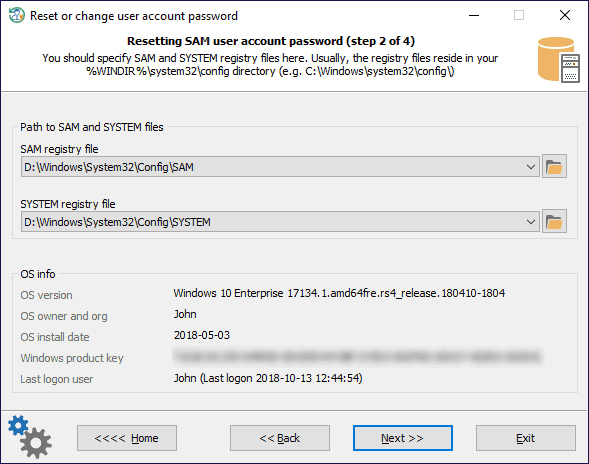
To reset a regular account password, you should select two registry files: SAM and SYSTEM. The application automatically searches all files and suggests the first ones it finds. The registry files are located in the %WINDIR%\system32\config folder. Where %WINDIR% is your Windows directory.
Once you select Active Directory mode during the previous step, you should set the location of the Active Directory database instead of the SAM registry file. By default, that is the %WINDIR%\NTDS folder. So the full path to the AD database may look like this: C:\Windows\NTDS\ntds.dit
The OS Info shows a version of the found Operating System, its owner and installation date, the last logged-in user, and the Windows product key if found.
Choosing Windows account
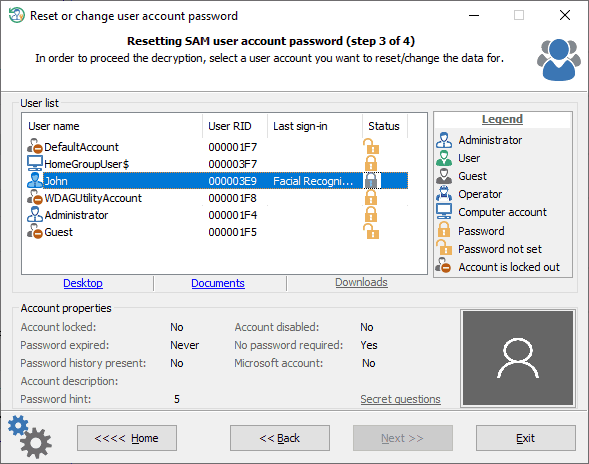
The top of the screen contains the list of user accounts found. By clicking on one of them, you can see the properties of the account; namely: whether the account is locked or disabled, whether the password is required, whether password history is available, whether password hint is available, etc.
You can also display the selected account's desktop, documents, or download folder.
All Windows 10 versions starting from v17063 have a new security feature, called secret questions. The
secret questions is an additional security layer aimed to protect the local accounts against an unauthorized password change. Reset Windows Password can successfully extract and display the secret questions and answers.
Resetting password
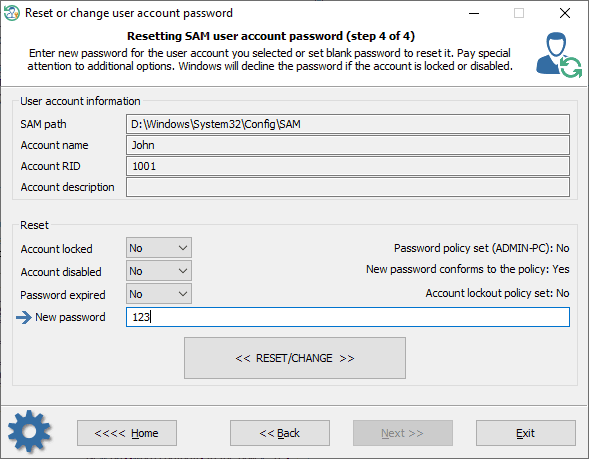
To reset the password, set the 'New password' field blank and click on the 'Reset/Change' button. Take note of the additional options. The account must be not locked, disabled, or expired.
Besides that, if local or domain password policies are set, make sure that the new password complies with the length and complexity requirements and does not match any of the passwords entered earlier. Otherwise, you will be unable to logon into the system even if you reset the password (unless you change the password policy settings).
Note that you will have to enter a non-empty password in order to be able to log on LiveID or Microsoft account.
If you are resetting a password of the built-in Administrator, keep in mind that in order to activate this account and logon into the system, you would need to load the system in Safe mode. To do that, before Windows starts loading, keep pressing the F8 key until the textual system boot selection dialog appears. In that dialog, select the safe mode item. After that, the built-in Administrator account will become active, and you will be able to use it.
On Windows 8 and later operating systems, click the Power button, press and hold the SHIFT key on your keyboard, and select Restart.
If the program detects that the target Operating System is in a hibernating state, it displays a warning message and prompts to reset the hibernation as well. It is highly recommended to follow the recommendation to avoid synchronization problems in the future.
 English
 Russian