Reset Windows Password:
searching and recovering user passwords
Setting search and recovery methods
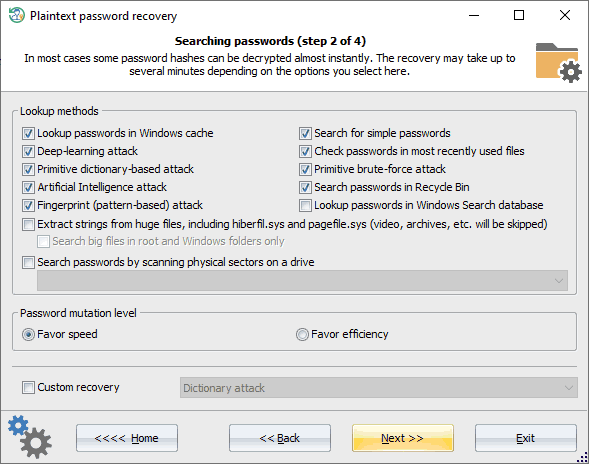
Finding users' passwords takes 11 major steps:
- Finding information in the Windows system cache. This method, in its turn, comprises over a dozen mini-attacks, during which the program analyzes all kinds of system passwords, from LSA secrets through DSL, FTP, WiFi, internet, mail, network, Sticky Notes, Windows clipboard, Windows Search index, and some other stuff. To ensure the system files are not altered, the program does not involve the auto repair function for Windows Search databases that are not in a clean state and silently skips such databases. To check if the Windows Search database is clean or dirty, try to open it from within the Windows Search explorer. The program should prompt to repair the database if it is not in a clean state.
- Analyzing simple, short passwords, keyboard shortcuts, etc.
- Password search using deep learning algorithms. Even though these algorithms are cut significantly to meet CPU requirements, they work much better compared to previous ones.
- Scan, parse and analyze the most recently used files of the target system.
- Primitive dictionary attacks. The application checks all passwords from the built-in dictionary for the Light and Standard editions or from several dictionaries (Arabic, Chinese, English, French, German, Portuguese, Russian, Spanish) for the Advanced Edition. If the deep search option is on, simple word mutations will also be taken into account during the search.
- Primitive brute-force attack.
- The artificial intelligence recovery. The attack analyzes the network activity of a user on the computer. Over thirty mini-modules take care of that. Upon the results of the analysis, the application generates user preferences and generates a semantic dictionary for the attack, which it later uses it for finding the password.
- Search for passwords in deleted files.
- Primitive Fingerprint attack on some complicated English passwords.
- Extract strings from huge files: RAM images, hiberfil.sys, pagefile.sys, and so on. When this option is set, the program tries to skip files useless in password analysis like video, huge archives, audio files, etc.
- Search passwords by reading and analyzing raw sectors of the selected drive. This feature works for both LM and NTLM hashes, looking for both ASCII and UNICODE passwords. If the 'Password mutation level' is set to 'Deep search', the program additionally tries to mutate all found passwords, thus walking through all sectors of the drive may take quite a time. The sector-based scanning algorithm can be extremely helpful because it allows extracting passwords, even if the target file was deleted from the disk a long time ago. On the other hand, it is inefficient against compound files (for example, Microsoft Office) and is absolutely useless against drives that have full-disk encryption set on. Like BitLocker or TrueCrypt.
To apply a custom recovery method, turn on the 'Custom recovery' and select one of the available attacks. In the next step, you will be prompted to set up various options related to the selected attack.
Selecting data source
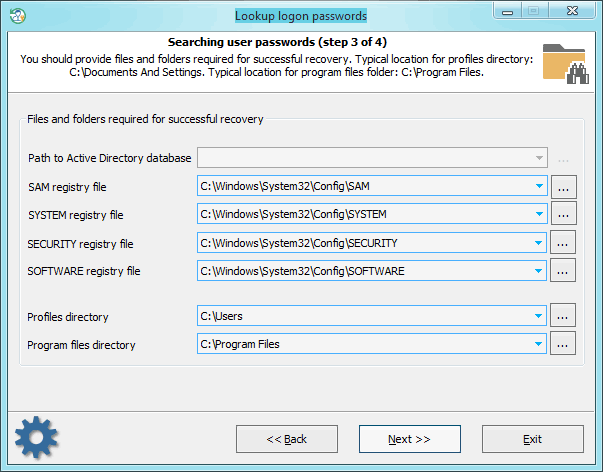
When searching for passwords, special attention is to be paid to setting files and folders required for the analysis process. Without those, the password search will be inefficient. The application finds the files automatically, but sometimes, e.g., when the computer has several operating systems installed, you may need to use the 'manual control'. Please also keep in mind that if the computer has 2 or more hard disk drives, the sequence of the letters for these disks can be set totally different than in the original system.
Searching and decrypting passwords
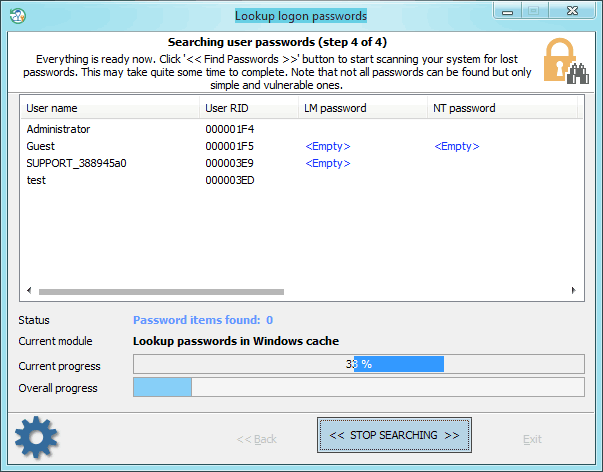
Finding/decrypting passwords can take some time, which depends on the attack settings and the peculiarities of your system. Completing the search normally takes less than a half of an hour (without a deep learning attack). The deep learning attack, however, takes much longer and depends on your CPU and the number of hashes to recover.
Note that not all passwords can be decrypted, but only simple and vulnerable ones!
 English
 Russian