English
 Russian
17.04.2024
Reset Windows Password v14.2
Telegram data recovery, Photo Database and Media Player investigation tools, and some more
20.02.2024
Reset Windows Password v14.1
IP addresses history viewer, fast disk search, local security editor and some more
Reset Windows Password v14.1
IP addresses history viewer, fast disk search, local security editor and some more

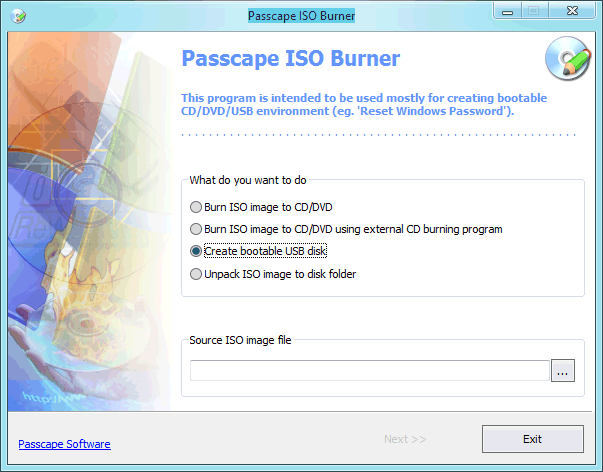
Passcape ISO Burner screenshotsPasscape ISO Burner
Passcape ISO Burner is the application for creating CD, DVD or USB disks from ISO 9660 images. PIB supports creating bootable disks (for example, WinPE, BartPE or Reset Windows Password).
Creating bootable CD/DVD
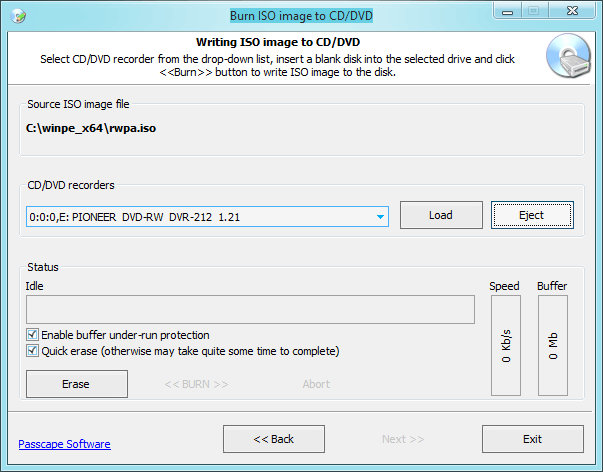
Select the first menu item: 'Burn ISO image to CD/DVD'. At the bottom of the screen, enter the path to the ISO image. That enables the 'Next' button, and you can move on to actually creating the disk. All we need to do in the burn disk dialog is select the recorder we are going to use, insert a blank CD/DVD in it and click on the <<BURN>> button to create a boot disk from the ISO image selected on the previous step.
Creating bootable USB disk
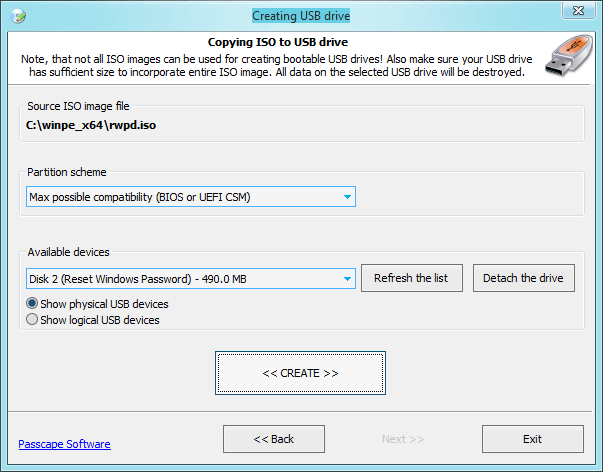
Select an existing bootable ISO image and set the 'Create bootable USB disk' option on. When the next window appears, plug the USB device into your computer; it should automatically appear on the list of found USB devices. Click the 'Create' button to format and create the boot USB. In some cases (for example, if the USB device is installed as a hard disk drive, and an extended partition entry is found on that disk) the program will require restarting for reassigning drive letters.
Be careful! All data on the target drive will be overwritten. If the program is unable to detect boot files in the source ISO image, it will show the respective warning.
|